Cartoview Application Manager
What is Cartoview
Cartoview is a web platform which enables the rapid deployment of easy-to-manage and easy-to-use Web Mapping Applications. It is an expansion of the well-known GeoNode platform and it’s all about installing, authoring and utilizing Web Mapping Applications within this platform. It integrates with the GeoNode Project to extend the platform and provide users with the experience of using Web Mapping Applications along with their Layers, Maps and Documents. It makes extensive use of the infrastructure, security and management tools of GeoNode in order to solve user problems and challenges. It enables user to apply workflows on data management and maintenance of their content (e.g. layers, maps and documents). It offers functionality to install, uninstall, author and manage Web Mapping Apps. Furthermore, it enables user to create App instances for specific business requirements utilizing the layers, maps, documents, users and groups which are available within the framework of GeoNode.
Where to find Cartoview apps
A number of Cartoview Apps has been developed by Cartologic and are freely available for download at Cartoview App Center. However if you are a developer and you are interested in joining this effort, feel free to download and install Cartoview from here and start developing your own apps. We even encourage you to submit your Apps at Cartologic and after a review process, code cleaning and approval they will be available to the community.
Cartoview Apps Panel
Click on the Apps link to launch the Cartoview Apps Panel. This is the home page of Cartoview. From here you can launch the installed apps, install new apps, create app instances, manage the apps etc.

Note
It is required to sign in with an administrator account in order to perform Cartoview Apps management tasks.
Cartoview Apps Manager
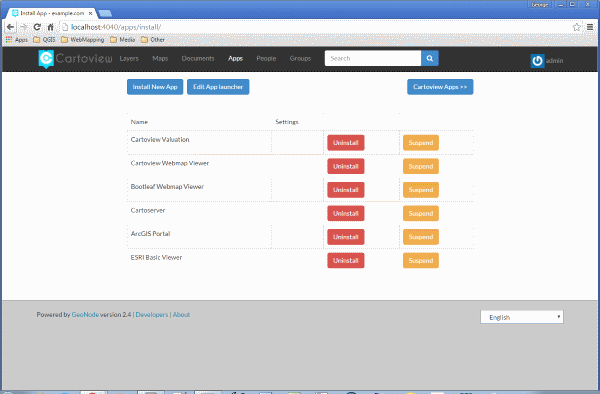
Click on the Manage Apps button in the upper right corner of the page. This will launch the Cartoview Apps Manager where you can install new apps, uninstall or suspend existing, edit the apps launcher or download apps from the App Market.
Cartoview Apps Download
Click on the Cartoview Apps button on the upper right corner of the page to launch the Cartoview Apps Market where you can download apps. Select the App that you want and hit the Download button to start download. Make sure that you take a note where this will be saved on your local disk. The app is packaged into a zip file and the Cartoview installer is capable enough to unpack and install it.

Cartoview Apps Installation
Click on the Install new Apps button on the upper left corner of the Cartoview Apps Manager. Click on the Choose file button, navigate to the App .zip file and select it.
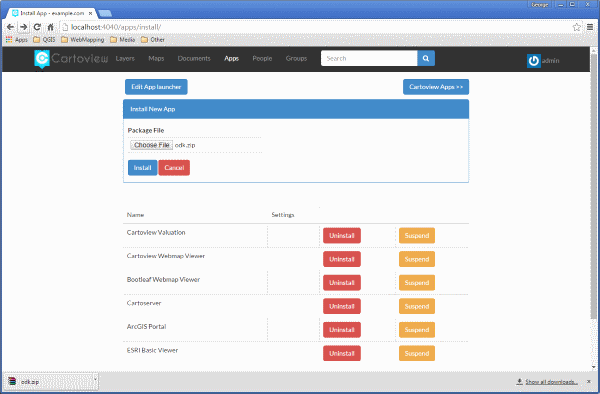
Click the Install button and wait for the installer to complete the installation and redirect to the Cartoview Apps Manager. Once done, the newly installed App should appear at the bottom of the Apps list.

Cartoview Apps Launcher
Click on the Edit App Launcher and change the order of the Apps as they are sorted on the Cartoview Apps Manager list. Drag and drop the apps in the preferred order and click the Save Changes button at the bottom of the dialog box.

Create new App Instance
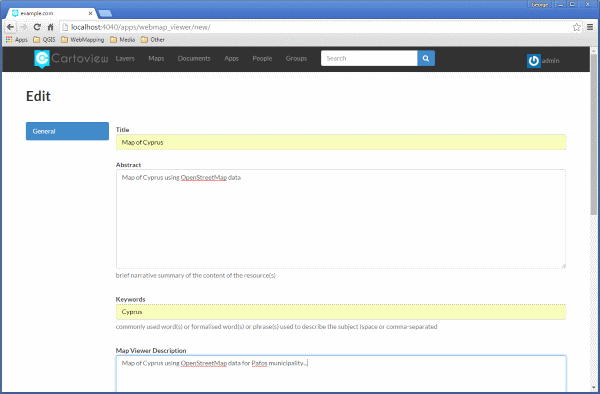
From the Cartoview Apps Manager select an App and click on the Create new button. Fill the parameter form, select required maps and layers and finally click the Save button at the bottom of the page to save the new instance.
Explore App Instances
From the Cartoview Apps Manager select an App and click on the Explore button. A list of the App instances created based on this App will appear. Click on any instance to launch the “App Instance Explorer” page.

On the App Instance Explorer page the user can Share, Rate and Comment on the App Instance, while it is possible to navigate back to the App Instance parameter form and modify the initial parameters if needed. Additionally, the App instance permissions can be changed from this page.

Launch Application
Finally, click on the Launch Application button in the upper right corner, to launch the application and enjoy the experience. Make use of the available functionality, like zooming, panning, identifying or searching for specific geographical feature or location.
